Basic Usage
DKAN provides UI for managing the Datastore. Management activities include:
- Importing items
- Deleting items
- Editing the schema (see below)
- Edit Views integration
Drush commands are also included, described below.
If you have successfully created a dataset with resources, you now have data in DKAN which you can display and store in several ways. However, DKAN is still reading this data directly from the file or API you added as a resource.
To get the fullest functionality possible out of your datasets, including a public API that can be used to develop 3rd party applications, you must complete the final step of adding your resources to DKAN’s own datastore. (At the moment, a DKAN datastore is simply a table in the main database.)
If you are exploring a resource that is not yet in the datastore, you will see a message advising you of this. Click the “Manage Datastore” button at the top of the screen. On the “Manage Datastore” page, use the “Import” button at the bottom of the page to import the data from your file or API into DKAN’s local datastore.
Notification to import resource to datastore:


Importing the resource:


Notification of a successful import:


Your data is now ready to use via the API! Click the “Data API” button at the top of the resource screen for specific instructions. DKAN datastores can also be created and updated from files using the following Drush commands:
To create a datastore from a local file: drush dsc [path-to-local-file]
To update a datastore from a local file: drush dsu [datastore-id] [path-to-local-file]
To delete a datastore file (imported items will be deleted as well): drush dsfd (datastore-id) To get the URL of the datastore file: drush dsfuri [datastore-id]
Processing Options
Files are parsed and inserted in batches. The user has the option of parsing them upon form submission. If the user chooses to parse the file manually they are able to see the progress of the processing through a batch operations screen similar to the one below.
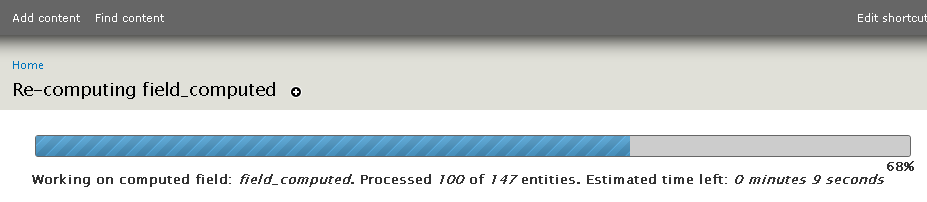

Files that are not processed manually are processed in pieces during cron.
Datastore API
Once processed, Datastore information is available via the Datastore API. For more information, see the Datastore API page.